
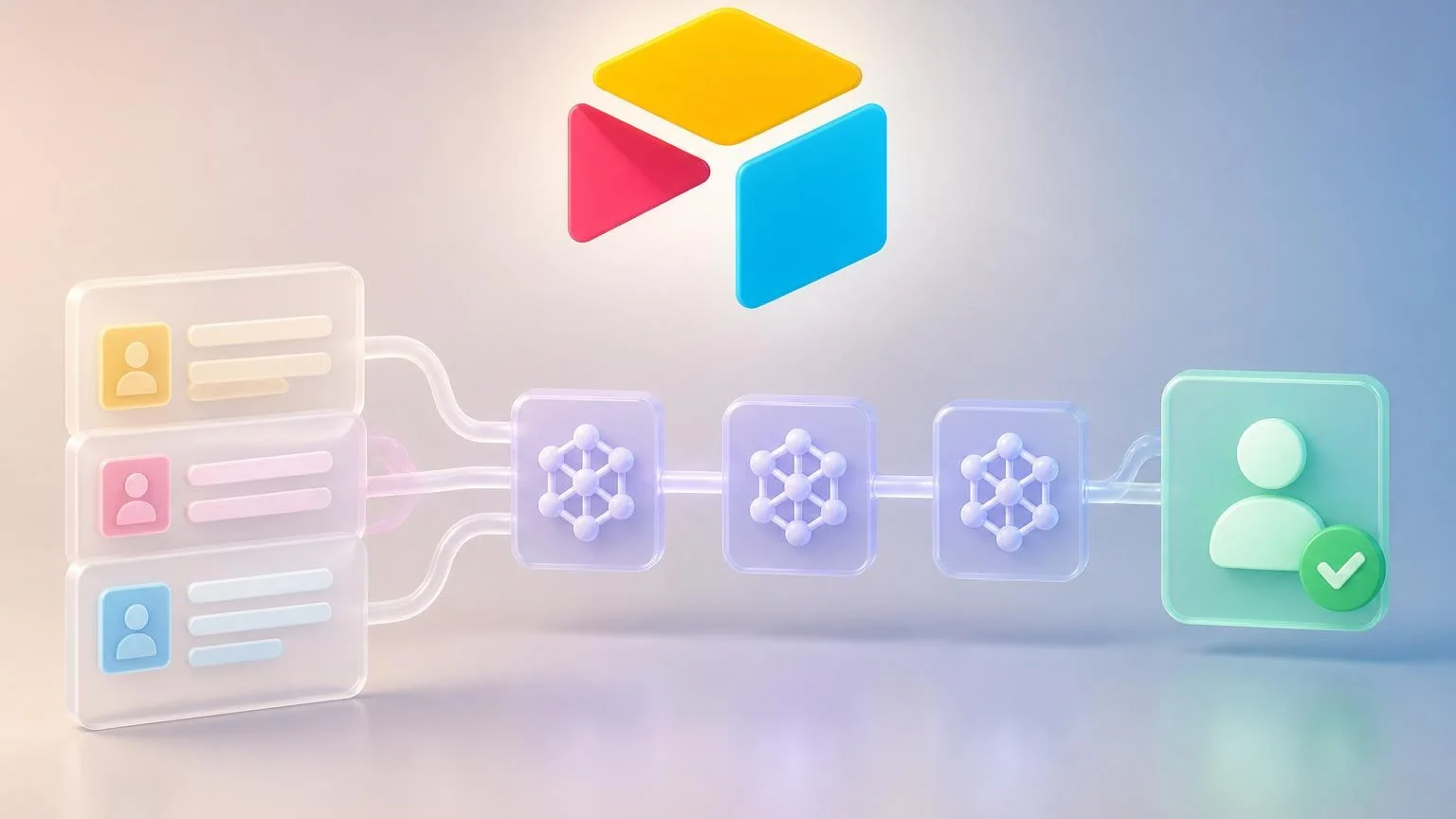
Airtable AI integration works best when Airtable stays the operating system for the workflow, the agent turns messy inputs into structured next steps, and the setup is designed to enrich and route records without giving AI broad, silent write access across the base.
That matters even more now because Airtable offers multiple AI surfaces inside the product, including Omni, field agents, and an MCP server for external AI tools. The practical decision is no longer whether you can connect AI to Airtable. It is which layer should own the job, what data it can see, what fields it can change, and where a human must approve the outcome.
What the Airtable AI integration should actually own
The safest Airtable AI integrations usually own one narrow job instead of the whole base. In practice, that means picking a workflow where the model adds judgment or summarization, but Airtable still remains the source of truth.
- Intake triage: classify new form submissions, requests, bugs, leads, or feedback into the right queue.
- Record enrichment: draft summaries, suggested tags, priority levels, or structured notes into helper fields.
- Approval preparation: gather context and propose the next step so a human can approve a stage change, assignment, or downstream sync.
If you ask the agent to do all three at once across every table, you usually lose control quickly. A better pattern is to define one trigger table, one output area, and one approval owner. That keeps the integration searchable, debuggable, and easier to trust.
Design permissions before you design prompts
In Airtable, permission design is more important than prompt design. If the connected user or tool can edit too much, the model can do too much. If the output fields are too broad, your team will spend more time cleaning up AI changes than benefiting from them.
Built-in Airtable AI
Omni is useful when the workflow mostly lives inside Airtable and a user is actively involved. It can analyze data, create and update records, build automations, and work from natural-language instructions. But it mirrors the permissions of the person using it, which means your user model becomes your AI control model.
- Use Omni when a collaborator is present and the work is conversational or builder-led.
- Use field agents when the job is cell-level enrichment, extraction, or generation inside a defined field.
- Keep sensitive reasoning or hidden inputs out of outputs that broader collaborators can view.
Airtable also lets owners and creators restrict who can edit specific fields and tables. That matters because AI should usually write only to helper fields such as suggested priority, suggested owner, summary, or approval status instead of directly changing revenue stages, compliance fields, or final customer-facing records.
MCP and external AI agents
MCP becomes more useful when the workflow needs a stronger reasoning loop, cross-system context, or an AI tool outside Airtable. The right use case is not “let the model do anything in the base.” It is “let the model read the right records, propose the right update, and act only inside a narrow permission boundary.”
- Use MCP when an external AI tool needs to query Airtable, analyze records, and update allowed fields through conversation or orchestrated steps.
- Use an external AI agent when the workflow crosses systems such as email, CRM, support, or internal chat in addition to Airtable.
- Keep the authorized user and scope intentionally narrow so the AI tool only inherits the access that job requires.
A concrete workflow example: new intake record to approved update
Consider an operations team using Airtable as the intake layer for inbound partnership requests.
- Trigger: a new record is created in an Inbound Requests table from a form or shared intake page.
- Context: the agent reads the request details, linked company records, previous conversations, an internal scoring rubric, and any allowed attachment fields. If you use external context, it can also pull approved public company information or internal policy notes.
- Action: the agent drafts a concise summary, classifies request type, suggests priority, recommends an owner, and writes those suggestions into non-final helper fields such as AI Summary, Suggested Queue, Suggested Priority, and Needs Human Review.
- Human handoff: an ops lead reviews the suggested values in an approval view. Only after approval does the workflow move the record to the next stage, notify the assignee, or sync the record to another system.
This pattern is stronger than letting AI directly reassign records or push downstream updates immediately. If the model is unsure, missing context, or sees conflicting data, the safest behavior is to mark the record for review and stop there.
Choose the implementation path by workflow shape
There is no single best Airtable AI layer for every workflow. The best option depends on how much autonomy you need and whether Airtable is the only system involved.
Use field agents when the job is local and repeatable
- Generate summaries from attachments or long text.
- Normalize free-text inputs into structured categories.
- Populate helper fields one record at a time.
Use Omni when a user is guiding the work inside Airtable
- Explore patterns in a base.
- Draft new fields or automations.
- Update records interactively with a collaborator in the loop.
Use MCP or an external AI agent when the workflow is multi-step
- Query Airtable, then combine that context with another system before acting.
- Route approved outcomes into CRM, email, support, or chat tools.
- Run a governed workflow repeatedly without requiring a human to manually prompt each step.
A useful rule of thumb is simple: if the job can be reduced to one field output, stay closer to field agents. If it needs reasoning across multiple records and systems, use an external agent but keep Airtable as the reviewable control layer.
Monitoring, failure handling, and guardrails
Most Airtable AI integrations fail in ordinary ways, not dramatic ones. The model writes to the wrong field, enriches a stale record, misclassifies a request, or exposes context that should not have been in the visible output. Good design assumes those failures will happen and makes them easy to catch.
- Write to staging fields first: keep AI output separate from final operational fields.
- Use explicit approval states: statuses like Drafted, Needs review, Approved, and Rejected make failures obvious.
- Design idempotent updates: if the workflow reruns, it should update the same record predictably instead of duplicating work.
- Log source context: store the record IDs, trigger time, and workflow version that produced the output.
- Constrain edit surfaces: use Airtable field and table permissions so the connected user or integration cannot modify sensitive fields just because the prompt asked for it.
- Review visible outputs: if AI-generated fields are visible in interfaces, make sure prompt inputs do not unintentionally reveal hidden data.
If your workflow cannot tolerate a wrong write, do not let the AI perform the write directly. Let it recommend the change and hand the decision to a human.
When to use an AI agent instead of a simple automation
A simple Airtable automation is usually better when the rule is deterministic: if form type equals billing, assign queue B. An AI agent becomes more useful when the record needs interpretation before the next step can be chosen.
- Use a standard automation for fixed routing, notifications, date math, and known field mappings.
- Use an AI agent when the workflow depends on reading messy text, attachments, linked records, or policy context before deciding what should happen.
- Use an external AI agent when Airtable is only one part of the workflow and the job also needs email drafting, CRM updates, support escalation, or cross-tool orchestration.
The best Airtable AI integrations are not the ones with the most autonomy. They are the ones that make intake cleaner, reviews faster, and downstream actions more reliable without hiding risk. If you keep the job narrow, the permissions tight, and the handoff explicit, Airtable becomes a strong control layer for AI-assisted operations instead of a messy place where unchecked edits pile up.