
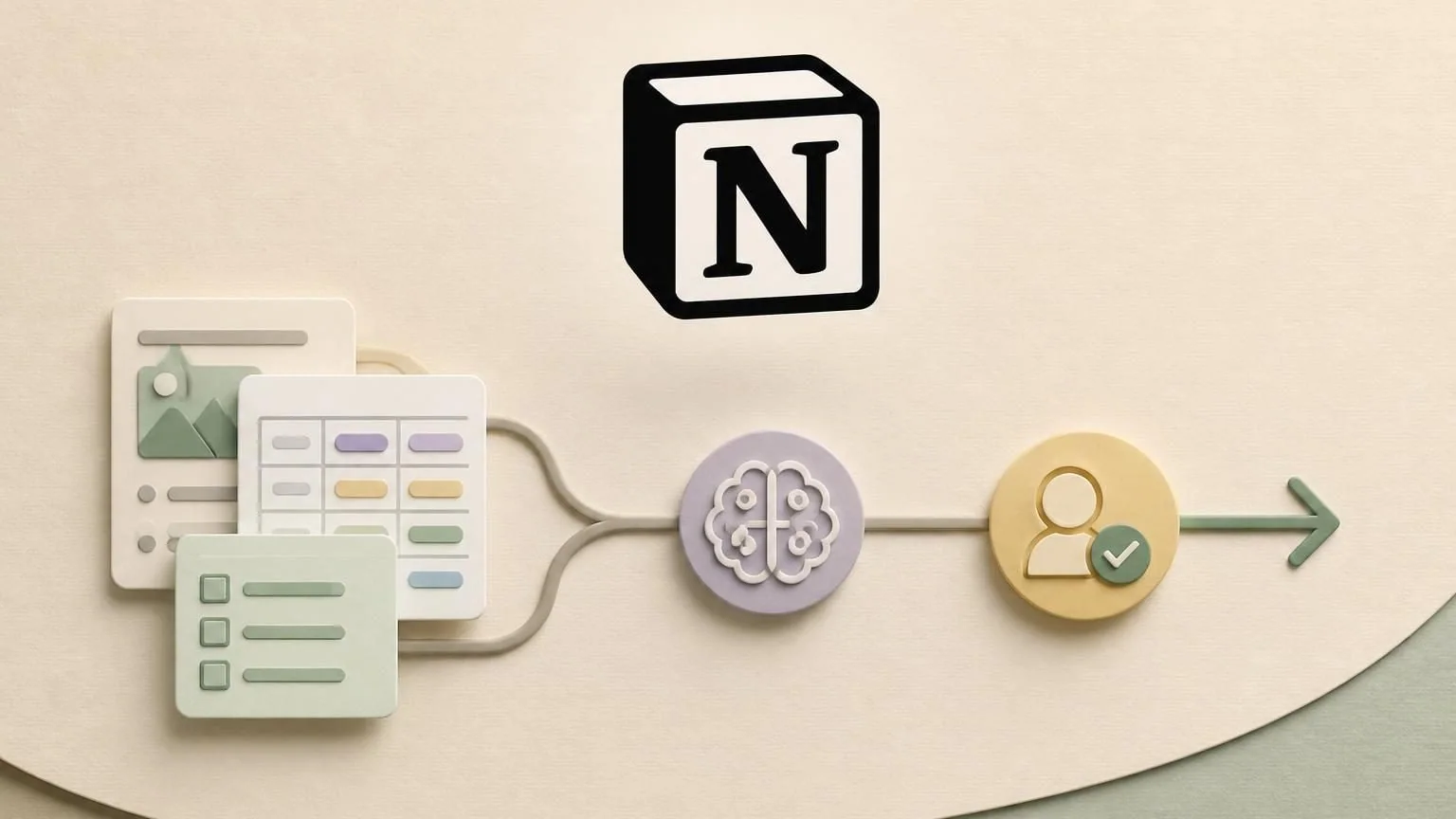
Notion AI integration works best when Notion is the knowledge and intake layer for a specific workflow, such as answering internal questions, triaging new database entries, and routing an approved next step to a human owner. The goal is not to let a model roam your whole workspace. It is to give an AI agent access to the right pages, properties, and comments so it can read context, update structured fields, and stop cleanly at approval boundaries.
For most teams, that means treating Notion as the place where context lives and where status becomes visible, while keeping higher-risk downstream actions gated by review. If you design the boundary correctly, the agent can speed up triage and reduce manual cleanup without turning every page into an automation risk.
Keep Notion in charge of context and status
The strongest Notion integrations start with one narrow job. Good examples include policy answers for employees, intake triage from a requests database, content QA before publishing, or structured enrichment of new records. These jobs fit Notion well because the relevant context already lives in pages, databases, and comments.
What usually fails is asking the agent to own the whole operating model. Notion should rarely be the place where an agent makes irreversible decisions on its own. It is better as a governed layer where the agent can read source material, write structured recommendations, and expose its reasoning to the human owner who will approve, reject, or edit the next step.
- Use Notion for: retrieval, summarization, structured triage, draft recommendations, visible status tracking, and human review.
- Do not use Notion alone for: silent record changes across many databases, unsupervised financial or customer-impacting actions, or broad workspace-wide autonomy.
Permission design: shared pages first, actions second
Before you design prompts, design access. In Notion, the agent should only see the pages and databases that belong to the job. If the workflow is vendor intake, share the vendor request database, the onboarding policy pages, the approval rubric, and the template pages it needs. Do not grant access to unrelated teamspaces just because they might be useful later.
In practice, permission planning usually breaks into four layers:
- Read content: the specific pages, subpages, and databases the agent needs for retrieval.
- Update content: only the properties or existing pages the workflow is allowed to change, such as status, priority, owner, or review flags.
- Insert content: only when the agent needs to create a follow-up page, checklist, or handoff record.
- Comments: use comments for reviewable reasoning, missing-field requests, and human approval notes instead of hiding decisions in a model log.
Notion is especially sensitive to over-sharing because page access can inherit downward. If you share a parent page or parent database incorrectly, the agent may inherit more context than intended. A clean integration starts with the smallest useful content boundary and expands only when the job proves safe.
Workflow example: new vendor request page to approved finance handoff
A practical Notion workflow is vendor request triage for operations or finance. The request enters through a Notion database, the agent enriches and classifies it, and a human approves the next action.
Trigger
A new page is created in a Vendor Requests database with a status of New.
Context
The agent reads the request page, the linked vendor onboarding checklist, the policy page that defines approval rules, and a small set of prior approved examples. If needed, it queries only the relevant properties from the database instead of pulling every field and formula on every row.
Action
The agent extracts missing fields, categorizes the request, assigns a preliminary risk level, updates structured properties such as Status, Category, and Needs Review, and leaves a comment that explains the recommendation in plain language. If something is missing, the agent asks for the missing document or owner inside the page comments instead of guessing.
Human handoff
The finance or operations owner reviews the property updates and the comment, then approves the next step. Only after approval should the workflow create a downstream ticket, notify another system, or trigger a payment- or contract-related action. If approval is denied, the page stays in Notion with a visible reason and a clean audit trail.
This pattern works because Notion remains the shared operating surface. The agent speeds up the messy first pass, but the human still owns the binding decision.
Pick the connection path that matches your trust model
There is no single correct way to connect AI to Notion. The right path depends on who is authorizing access, whether the workflow is fully automated, and whether a human is actively driving the session.
- Internal connection: best for an internal business workflow inside one Notion workspace. This is usually the right choice when the agent needs persistent access to selected pages or databases.
- Public connection: better when multiple external workspaces or customers need to authorize the same integration individually.
- Notion MCP: best when a human is actively using an AI tool such as Claude, ChatGPT, or Cursor and wants that tool to work against Notion with OAuth-based access.
- Built-in Notion AI and Enterprise Search: useful when the job is mostly finding, summarizing, and citing information from the workspace or connected apps.
A simple rule helps here: if the work is headless, recurring, and operational, use the REST API and a deliberately scoped connection. If the work is interactive and user-driven inside an AI client, MCP can be a better fit. If the job is mostly search and summarization, Notion's built-in AI features may already cover enough of the need.
Guardrails that stop quiet failures
Quiet failures are more dangerous than obvious failures. If a database is not shared correctly, if a schema changes, or if the agent loses permission to update a page, the integration should not keep guessing. It should mark the record for review and make the problem visible.
- Use webhook-driven updates where possible: do not rely only on constant polling for changes.
- Make writes idempotent: use the Notion page as the workflow anchor so retries do not duplicate comments, child pages, or downstream actions.
- Log the source context: capture which page, template, or rule set informed the recommendation.
- Fail into a visible status: set a state such as Needs Review or Blocked rather than leaving the page in a false completed state.
- Watch schema drift: if a property name, relation, or select option changes, pause writes until the mapping is confirmed.
The best integrations are easy to trust because they make uncertainty visible. In Notion, that usually means writing back a reviewable status and comment rather than hiding the failure outside the workspace.
When an AI agent is worth using instead of a simple Notion automation
A simple automation is enough when the rule is deterministic: if a page enters a certain view, set an owner or send a notification. An AI agent is worth the added complexity when the job depends on ambiguous language, multiple source pages, structured classification, or a draft recommendation that a human must review.
Use an AI agent when the workflow needs to answer questions from documentation, interpret unstructured request text, compare the request against policies, and produce a reviewable recommendation. Do not use an agent when a dropdown rule, formula, or fixed if-this-then-that step will do the job more safely.
If you keep that boundary clear, Notion becomes a strong operating layer for AI: readable enough for retrieval, structured enough for triage, and visible enough for human approval.