Building a computer means choosing compatible parts, assembling them in a safe order, and setting up the software so the machine is stable on day one. For most first-time builders, the difficult part is not turning the screwdriver. It is matching the CPU, motherboard, memory, case, power supply, storage, and graphics to the kind of work the computer will actually do.
If you start with the job, the budget, and the upgrade plan, the rest becomes much simpler. This guide walks through the parts that matter, the assembly order that keeps mistakes low, and the extra considerations if you also want the machine to handle local AI tools, coding, or heavier automation experiments.
Start with the job, not the parts list
Before you compare brands or chase benchmark charts, decide what this computer needs to do over the next year or two. A general home-and-office desktop, a gaming machine, and a local AI box can all be built with the same overall process, but they reward different spending choices.
What to prioritize before you buy parts
| Use case | Prioritize first | Easy place to overspend |
|---|---|---|
| Everyday work and web use | Reliable CPU, 16GB or more of RAM, and a solid-state boot drive | A large dedicated GPU you will barely use |
| Gaming or creative work | GPU performance, airflow, and enough RAM for multitasking | An expensive CPU that the rest of the build cannot fully support |
| Local AI, coding, or automation experiments | GPU VRAM, system RAM, fast NVMe storage, cooling, and PSU headroom | Cosmetic upgrades that do not improve throughput or stability |
If you are unsure, build for balance. A well-matched system you can upgrade later is usually better than a parts list with one flashy component and several compromises around it.
Choose parts in dependency order
One reason first builds go wrong is that people shop in the wrong sequence. A computer is not a bag of unrelated parts. Each major choice affects what is compatible afterward.
1. Start with the CPU and motherboard
Your processor choice determines the socket, chipset, memory support, and often the upgrade path. That is why it makes sense to choose the CPU first and then select a compatible motherboard instead of doing it the other way around. Once that pair is set, many later decisions become easier.
Also decide early whether the machine will run Windows, Linux, or both. If you plan to use Windows 11, make sure the build can satisfy Microsoft’s baseline requirements, including a compatible 64-bit processor, 4GB of RAM, 64GB of storage, UEFI firmware, Secure Boot capability, TPM 2.0, and DirectX 12 graphics support. Those are minimums, not ideal build targets, but they matter before you buy older or bargain components.
2. Pick memory and storage for the way you actually work
Memory affects how comfortably your system handles multitasking, browser tabs, creative apps, local databases, code editors, and AI tools running side by side. For a simple everyday desktop, you can stay modest. For coding, heavier multitasking, virtual machines, or local AI workflows, it is usually smarter to leave more room than you think you need.
For storage, a solid-state drive should be the starting point, not the upgrade. Faster storage improves boot time, application launch speed, and the responsiveness of workloads that continuously pull data from disk. It also keeps the machine from feeling slow even when the CPU is not the bottleneck.
3. Treat the GPU, case, and power supply as one compatibility problem
If you are not gaming, creating 3D content, or running local AI models, integrated graphics may be enough. But once you want heavier visual work or local model inference, the graphics card becomes a central buying decision.
That does not mean you should buy a GPU in isolation. Graphics cards have real physical and electrical requirements. Some need more case clearance, more slots, specific power connectors, and meaningfully more wattage than the rest of the system. NVIDIA’s GeForce RTX 4070 quick-start guide, for example, lists a 650W minimum system power supply and explicit case clearance guidance for that card. Even if you buy a different GPU, the lesson is the same: always verify card size, power needs, and connector requirements before finalizing the case and power supply.
For PSU sizing, a practical first pass is to estimate the power draw of the CPU and GPU, add room for the rest of the system, and then leave extra headroom for stability and future upgrades. That approach is much safer than buying the cheapest unit that barely fits today’s build.
A beginner-friendly assembly order
Once the parts are compatible, the build itself becomes straightforward if you avoid rushing and follow a sensible sequence.
- Prepare the workspace. Use a large, well-lit surface, keep screws organized, and have the operating-system installer ready on a USB drive.
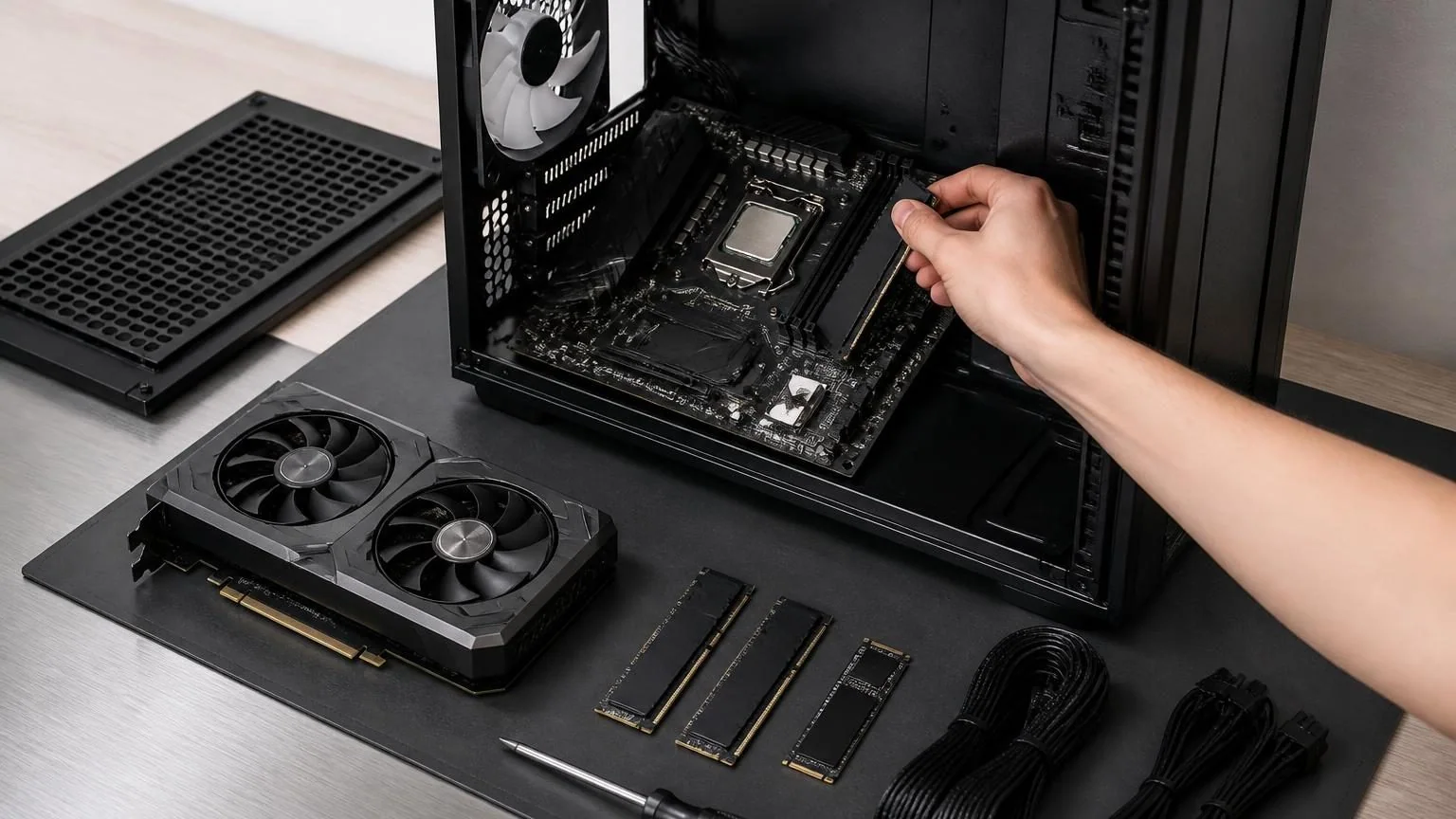
- Install parts on the motherboard before it goes into the case. The CPU, cooler, RAM, and M.2 storage are usually easiest to install while the board is outside the chassis.
- Prepare the case. Confirm motherboard standoffs, fan locations, and cable-routing space before mounting anything permanent.
- Mount the motherboard and power supply. Secure the board first, then install the PSU and route the main power cables before space becomes tight.
- Connect storage, front-panel, and fan headers. Small case cables are easier to manage before the GPU blocks access.
- Install the graphics card last. This reduces the chance that a large card gets in the way while you are still reaching motherboard headers.
- Do a final cable and airflow check. Make sure nothing is loose, pinched, or touching a fan blade before the first boot.
This order is not the only valid one, but it lowers frustration for first-time builders because it avoids working around the largest component until the end.
First boot: BIOS, Windows, drivers, and stability checks
When the system powers on, the first goal is not speed. It is confirmation. Check that the system recognizes the processor, installed memory, and primary storage. Make sure temperatures look normal and confirm the boot order so the machine can install the operating system from your USB drive.
After the OS is installed, update chipset, motherboard, network, and GPU drivers from the appropriate vendors. If you are using Windows 11, complete the normal setup process and updates before you start troubleshooting performance. Many new-build issues come from missing drivers or unfinished updates rather than bad hardware.
A BIOS update can be useful, but it should be deliberate. Do it when the board vendor recommends it for your CPU, memory compatibility, or a known issue you are actually experiencing. A first build does not need random firmware changes just because a newer version exists.
What changes if you want to run local AI on the same computer
This is where a standard build and an AI-ready build begin to separate. Local AI workloads often care less about flashy extras and more about VRAM, available memory, sustained cooling, and fast storage. In practice, that means some parts that feel optional on a general-use machine become much more important once you want to run models locally.
The hardware jump can happen faster than many beginners expect. Ollama’s published examples show that some local coding model setups can demand far more memory than everyday consumer software. One Code Llama example lists 16GB or more of memory for a 13B model and 32GB or more for a 34B model. A newer Ollama launch example cites roughly 23GB of VRAM for a long-context coding setup. Those are examples rather than universal rules, but they show why local AI planning should start with model size and context expectations, not only with CPU choice.
If local AI is on your roadmap, prioritize these five things:
- A GPU with enough VRAM for the models you realistically plan to run
- Enough system RAM so the rest of the machine stays responsive while AI tools are open
- Fast NVMe storage for models, datasets, and scratch space
- Strong airflow so sustained workloads stay stable
- Extra PSU headroom so upgrades do not force a rebuild later
The practical lesson is simple: build for the heaviest real workload, not the lightest demo workload.
Common first-build mistakes to avoid
- Buying parts without checking clearance. A GPU can fit the motherboard slot but still fail to fit the case comfortably.
- Overspending on the CPU and underspending on the rest. A balanced machine usually feels faster than an imbalanced one.
- Treating the power supply as an afterthought. Stability, noise, and upgrade flexibility all depend on it.
- Using slow or cramped storage. A fast boot drive makes the whole system feel better.
- Building only for today. Leave room for extra storage, more memory, and a later GPU upgrade if the budget allows.
A pre-purchase checklist for beginners
Before you place the order, run through this list:
- Does the CPU match the motherboard socket and chipset?
- Does the motherboard support the memory type and capacity you plan to use?
- Does the case fit the motherboard size and the length of your graphics card?
- Does the power supply provide enough wattage and the right connectors?
- Are you using an SSD as the main operating-system drive?
- Does the build meet the operating-system requirements you want?
- Will airflow still be adequate after the GPU is installed?
- If local AI matters later, have you left headroom in VRAM, RAM, storage, and power?
A good first computer build is not the one with the most dramatic parts list. It is the one that is balanced, stable, easy to upgrade, and aligned with the work you actually plan to do. If you also want to test local AI or automation ideas, that same discipline matters even more because the wrong bottleneck can turn an expensive system into a frustrating one.